From an editable project to video
HyperFrames is HeyGen’s open-source framework for turning HTML, CSS, media and seekable animation into video. You can work locally with its CLI and a coding agent, or start in HyperFrames Studio. The framework is free; your AI assistant and optional HeyGen-generated media can have separate charges. Official repository · Quickstart and cost boundaries.
Which HyperFrames?
The project covered here is heygen-com/hyperframes, linked from HeyGen’s HyperFrames website. It is intended for repeatable motion graphics, explainers, product demonstrations and other videos you can edit as code. It does not make every visual asset for free: you supply media or deliberately use a generation service.
| Entry | What it is | Use it for |
|---|---|---|
| heygen-com/hyperframes | Official open-source repository | Source, installation and current documentation |
| hyperframes.heygen.com / hyperframes.studio | Official project site and Studio download route | Choose a setup path or install the desktop app |
| hyperframes.app | A separate same-name website | Do not substitute its instructions or account terms for HeyGen’s repository |
The official repository identifies the project as Apache-2.0 licensed and specifies Node.js 22 or later for the developer workflow. Check the README and license.
Install and create a project
Choose one route. Studio is the simpler start if you want the editor and agent together; the CLI is useful if you already work in a project folder.
Desktop app
Download official Studio, install it, and sign in with a free HeyGen account. The quickstart lists macOS, Linux and 64-bit Intel/AMD Windows; Windows on Arm is not yet supported. System availability.
Local CLI and agent
Use Node.js 22 or later and a coding agent of your choice. Run the following in a new working directory. The commands create a project; they do not grant free usage of a paid assistant. Prerequisites · CLI guide.
npx hyperframes init my-video
cd my-video
npx hyperframes skills update
npx hyperframes preview
If you install skills through the interactive picker instead, use npx skills add heygen-com/hyperframes and select Core Skills. Reopen your coding agent in the project folder. Plugin users should follow their client’s installation route in the official quickstart rather than combining multiple installation methods.
Make your first render
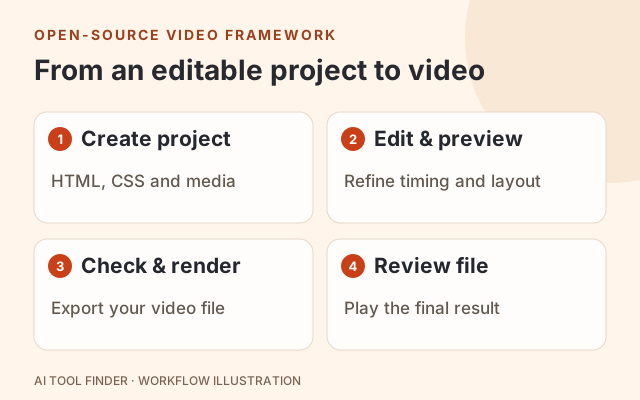
- 1
Give the project a narrow brief
Ask your agent to make a 10-second introduction using text, simple shapes and media you already have. Name the audience, message and aspect ratio. This avoids requiring generated media for the first draft.
- 2
Inspect the preview
Open the local preview, review the opening and ending, and check that text fits. If the project includes sound, listen for timing and missing audio before exporting.
- 3
Check and render
Run the documented commands below from the completed project folder. A successful render should leave final.mp4 there. If you omit the output flag, the documented default is the renders/ directory.
- 4
Play the file itself
Open the exported MP4, rather than relying only on the browser preview. Confirm duration, framing and any audio. Keep the project files if you want to revise the video later.
npx hyperframes lint
npx hyperframes check
npx hyperframes render --output final.mp4
lint checks project structure; check runs browser-based checks. These are documented commands, not a render we performed for this listing. Official rendering instructions.
Formats, costs and common failures
| Question | What to check |
|---|---|
| Need a standard video? | Start with MP4. The official render guide also documents MOV, WebM, GIF and PNG-sequence exports. |
| Need transparency? | Use the documented transparent WebM or MOV workflow. An opaque composition background remains opaque; ordinary MP4 is not the transparent-delivery route. |
| Need sound in a GIF? | GIF has no audio. Export MP4 or WebM instead. |
| Preview or render fails? | Run npx hyperframes doctor, then use the installed command’s --help output. Fix missing media and failing project checks before retrying the render. |
| Is everything free? | The framework is free. AI-agent plans, optional HeyGen media credits and any cloud infrastructure are separate. No flat per-video total is established here. |
Format and rendering reference · Diagnostics and command reference · Free framework versus paid services.
Choose the right workflow
Choose HyperFrames when editable layout, timing and repeatable code matter. If you mainly want new footage from a prompt or image without maintaining a project, compare AI video generators. For a coding assistant to help author the project, see GitHub Copilot and Fusion.
Frequently asked questions
Is HyperFrames the same as hyperframes.app?
This guide covers the HeyGen project at heygen-com/hyperframes. The same-name .app website is a separate destination; use the repository and its linked documentation for these commands.
Can I render without buying HeyGen media?
The local framework can render a project using text, graphics and media you provide. Optional HeyGen-generated media and an AI assistant’s own usage can carry separate charges.
Does HyperFrames work on Windows?
The official quickstart lists a desktop app for 64-bit Intel/AMD Windows, but not Windows on Arm. The local agent/CLI route has its own prerequisites; consult the current README for your setup.
Did AI Tool Finder test the first render?
No. We checked the commands and prerequisites against the official documentation. This page does not claim a successful render, measured speed or output-quality test.
This is a documentation-based setup guide. Commands and platform requirements were checked October 29, 2026; we did not install the project, purchase media or perform a render for this article.